← All guides·Guide 1 of 11
The desktop app is the version of Claude that can work inside a folder on your own computer. This guide installs it, explains what is on the screen, and ends with an hour of tests that tell you what the tool gets wrong before a client document goes anywhere near it.
Step 1 — Download and install
Go to claude.ai/download and choose the version for your operating system. Open the downloaded file and follow the installer. On a Mac the app lands in your Applications folder; on Windows it appears in the Start menu. Open it and sign in with your Claude account.
Two cautions.
Download only from claude.ai. Search results for “Claude download” include look-alike sites that charge for something that is not Anthropic’s product. The address bar should say claude.ai before you click anything.
Do not install the app on a shared or unmanaged machine and then connect it to client folders. The app can read whatever folder you give it. Treat it like any other program that will have access to your files.
Step 2 — What you are looking at
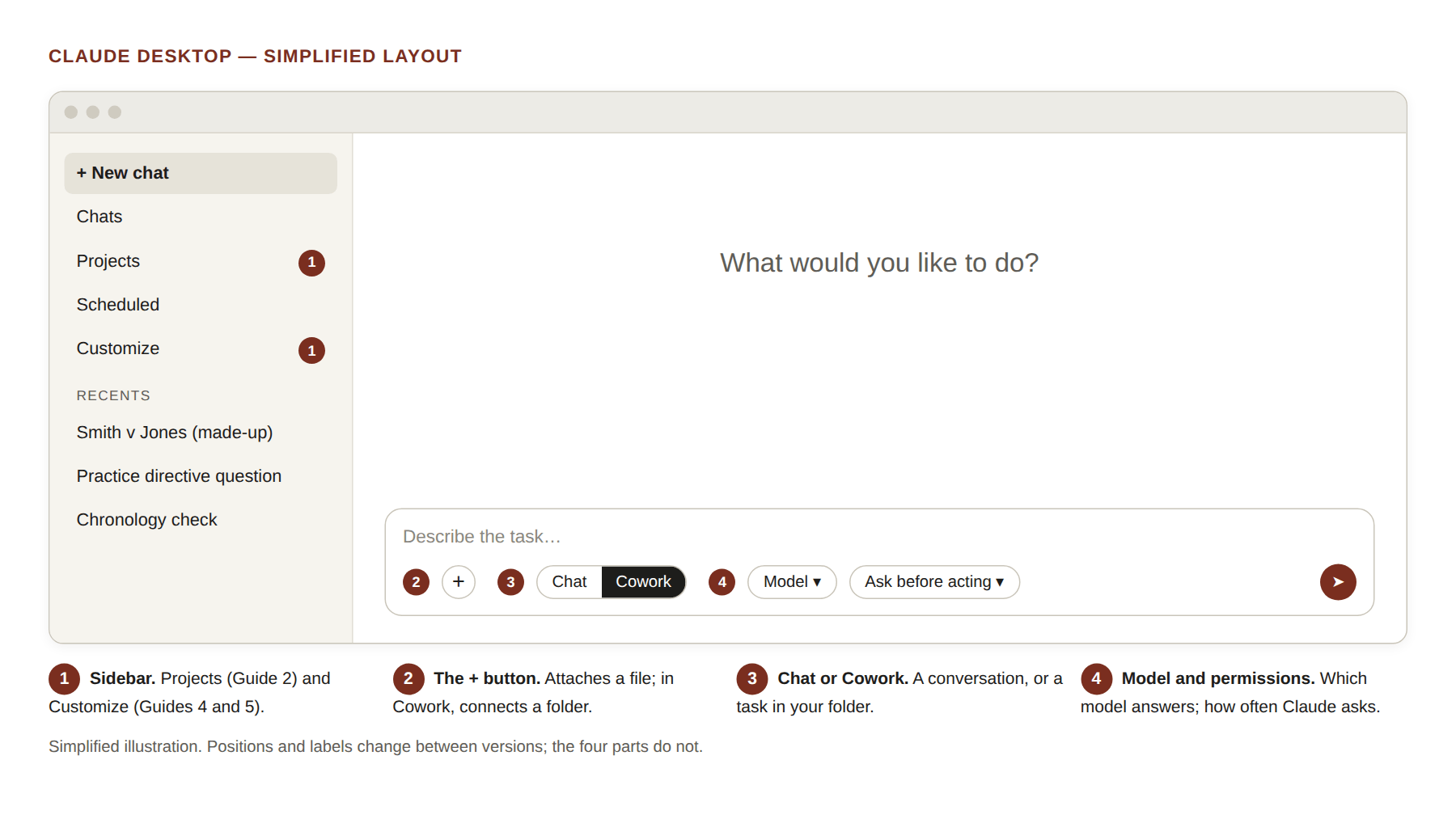
The window has three areas.
The sidebar on the left. A button to start a new conversation, a list of recent conversations, and, further down, the sections you will use in later guides: Projects, where a folder and its standing instructions live together, and Customize, where skills, connectors and plugins are managed. Later guides return to each of these.
The main area. The conversation. Claude’s answers appear here, and so do the files it produces.
The message box at the bottom. This is where you type. Two controls on it matter.
The first is the choice between Chat and Cowork. Chat is a conversation: you type, Claude answers, you can attach a file. Cowork is different in kind. You describe a task, Claude plans it, and then works through it, reading and writing files in a folder you have connected, until the task is done. Everything on this site about matter folders assumes Cowork. (If your message box shows no Chat or Cowork choice, you have a newer version of the app in which the two are combined; the rest of this guide still applies.)
The second is the + button. In Chat it attaches a file. In Cowork it is also where you connect folders and choose which connectors Claude may use.
Somewhere near the message box is the model menu. The models have names that change every few months. The pattern does not: there is a fast, cheaper one and a slower, more careful one. Use the careful one for anything that will leave your desk with your name on it. Use the fast one for sorting, extracting and other mechanical work. The app does not warn you when you are using the wrong one for the job, so look at the menu before you start.
Step 3 — Three ways of working

It helps to have the three ways of working clear before you touch a document.
A chat. One conversation. You can attach a file with the + button; the file exists in that conversation and nowhere else. When you start a new conversation, the new one knows nothing about the old one. Good for one document and one question.
A project. A named container that holds documents and a set of standing instructions. Every conversation started inside the project can see both. Good for a matter you will return to over weeks, and for reference material such as the rules of court. Guide 6 covers projects.
Cowork with a connected folder. Claude works inside a folder on your computer: it reads what is there, writes new files into it, sorts, indexes and converts. Your documents stay in your folder structure, where a colleague can find them, and the work survives the conversation. Guide 2 sets this up.
The order of the guides on this site is the order in which most practitioners need these: install; folder; readable documents; then skills, plugins and projects.
Step 4 — Permissions: how Claude asks before it acts
In Cowork, Claude does not simply run. It asks. There are three settings, chosen from the message box, that control how often.
In the manual setting, Claude pauses before an action and asks for approval; you choose Allow or Deny. In the automatic setting, Claude keeps working without stopping to ask about each step, although actions are still reviewed for safety before they happen. In the third setting, nothing is checked at all.
Start with the manual setting and stay on it until you understand what Claude actually does in a folder. You will learn more from a week of Allow and Deny than from any explanation. Two protections apply whatever you choose: Claude cannot delete files in a connected folder without an explicit permission prompt, and it cannot see any folder you have not connected.
Step 5 — Check the settings that affect confidentiality
Before any client document is uploaded or any matter folder is connected, find out what happens to what you put in. The questions are the same for every tool: Is your input used to train the provider’s models? How long is it kept? Who at the provider can see it? What has been connected to the account?
The answers depend on the plan and the account you are logged into, and consumer plans are treated differently from business plans. They also change. Read the terms for the plan you actually have, and look at the privacy settings in the app for that account, before the tests below. A paid plan is not, by itself, an answer to the confidentiality question; Guide 10 deals with that question properly.
Step 6 — Test it before you trust it
Every new tool, and every new model, gets something wrong that the previous one did not. The only reliable way to learn what a tool gets wrong is to give it work where you already know the right answer and watch. Use public material only for these tests: a reported judgment, a practice directive, a form from a court website. No client documents yet.
Give the tests an hour.
The summary test. Ask it to summarise a judgment you know well. Read the summary against the judgment. Look for what is missing, not only for what is wrong.
The authorities test. Ask for the leading authorities on a point in your own field. Check every citation it gives you, name, court, year and reference, against the report or SAFLII.
The stamp test. Give it a scanned document that has a court stamp, a handwritten note or a faint page, and ask what the document says. See whether it read everything, or only the clean parts, and whether it told you about the parts it could not read.
The long-document test. Give it something long and ask about something near the end. Then ask which pages it read.
The quotation test. Ask it to quote a passage, then compare the quotation with the source word for word.
The stamp test and the quotation test are the two that catch the most. The judgments on the Research page include one in which senior counsel’s heads contained errors traced to a subscription legal research tool (Northbound Processing (Pty) Ltd v South African Diamond and Precious Metals Regulator [2025] ZAGPJHC 661 at [89]); a paid tool is not a tested tool.
Step 7 — Write down what it got wrong
Keep a short note: which test, what happened, and how you would have caught it in a real matter. This note is the beginning of your checking routine for that tool, and it is worth more than any general warning about AI.
Then decide what the tool is for. If it invented or mangled citations, no legal research with it except from a source pack (Guide 8) followed by the full checking routine (Guide 9). If it missed parts of long or scanned documents, make the documents readable first (Guide 3) and check coverage on every summary. If its quotations were inexact, never paste one without comparing it with the source. If the terms let the provider train on your input, no client material at all.
Repeat the hour when the tool, the model or your plan changes. They change often.
Check yourself
At the end of this guide you should have the app installed and signed in; know where Projects, Customize, the Chat/Cowork choice, the + button and the model menu are; have chosen the manual permission setting; have read the terms and privacy settings for your plan; and have a page of notes on what the tool got wrong in your tests.
Sources on file: LPC Code of Conduct, paras 3.11 and 3.13 (competence). Northbound Processing (Pty) Ltd v South African Diamond and Precious Metals Regulator [2025] ZAGPJHC 661, para [89]. Anthropic support articles: Install Claude Desktop; Get started with Claude Cowork (as at 24 September 2026).